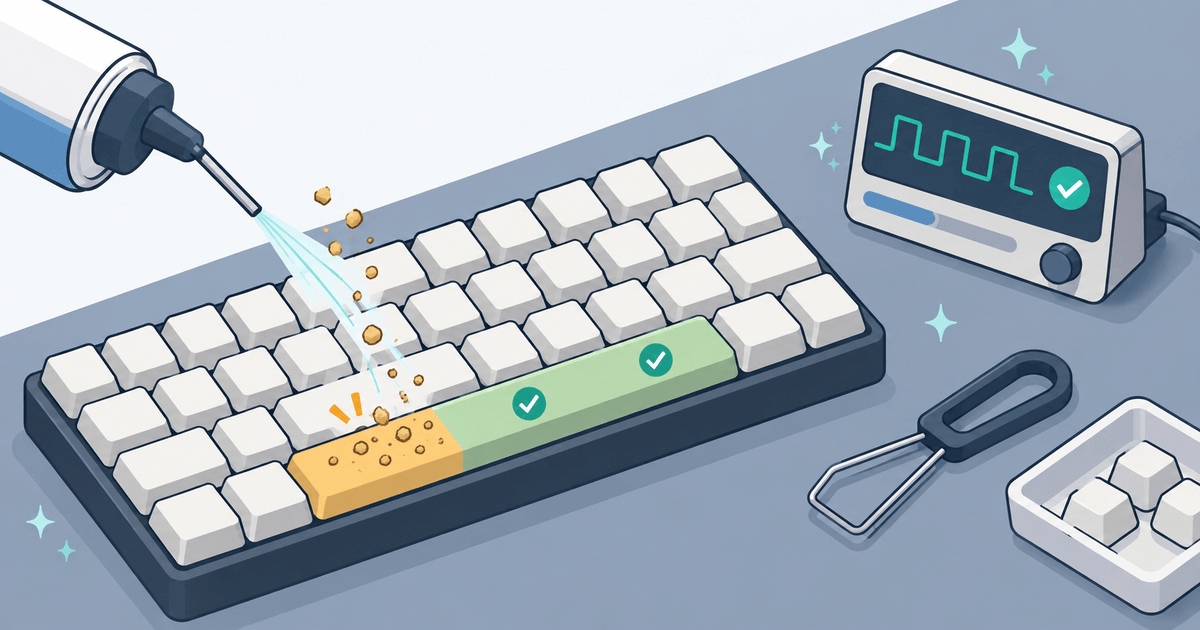
When the spacebar stops working, every sentence becomes slow and frustrating. The good news: a missing space is not automatically a dead keyboard. A loose wireless connection, an accessibility setting, debris under the key, or a failed switch can all produce similar symptoms—but they need very different fixes.
Start with a quick diagnosis before removing a keycap or changing drivers. Test your spacebar now: press and release it 20 times at the center, then near its left and right ends. The on-screen spacebar should react to every press. That result tells you where to look next.
Important: If liquid was spilled on the keyboard recently, turn it off, disconnect power, and stop testing it. Repeatedly powering a wet keyboard can turn a recoverable spill into corrosion or electrical damage. Let a qualified repair service assess a laptop or a keyboard with liquid inside.
Quick answer: what your test result means
| What happens | Most likely direction | What to do next |
|---|---|---|
| The spacebar never responds in the tester or a text field | Physical key, keyboard connection, or system-level input issue | Try the connection checks, then test on another device. |
| It works in the tester but not in one game or app | App shortcut, key binding, overlay, or remapping software | Check that app’s controls and close remapping/overlay software. |
| It works only when pressed hard or only in the middle | Debris, a binding stabilizer, a worn switch, or a misaligned keycap | Clean safely; inspect only if your keyboard’s manual permits keycap removal. |
| It works on one side but not the other | A spacebar stabilizer or keycap alignment problem | Do not force it; use the manufacturer procedure or a repair technician. |
| It misses presses across the whole keyboard | Battery, receiver, Bluetooth, USB, driver, or operating-system issue | Check power and connection before treating it as a broken spacebar. |
This distinction matters. A browser test confirms that the computer received an input event; it cannot prove that an intermittent hardware fault will never return. Repeat the test at normal typing pressure and from the places you naturally hit the bar.
1. Test the spacebar properly before trying a fix
Use this two-minute check to avoid chasing the wrong cause:
- Open test your spacebar in a modern browser. Select the Laptop or Mac layout if it matches your device.
- Press and release the spacebar 20 times with normal force. Then test the left, center, and right portions separately.
- Type a short sentence in a plain text editor. This rules out a page-specific shortcut or a browser focus problem.
- If it is an external keyboard, try it on a second computer, tablet, or phone that supports it. If the same key fails there, the keyboard is the likely source.
How to read the result
If the virtual spacebar lights every time and your text editor receives spaces, the hardware is probably working at that moment. If the problem occurs only in a game, video editor, remote desktop, or one website, reset that app’s spacebar binding and temporarily close macro, accessibility, or keyboard-control software.
If the tester misses presses too, continue below. A spacebar that looks normal but registers only after a forceful press is still a fault: do not solve it by simply hitting it harder. That can worsen a bent stabilizer or damaged scissor mechanism.
2. Fix connection and power problems first
These checks are fast, reversible, and especially important when several keys are unreliable.
Wired USB keyboard
- Unplug the keyboard, wait a few seconds, and plug it directly into another USB port on the computer.
- Bypass USB hubs, docks, and KVM switches while testing. A hub with an unstable connection can make an otherwise healthy keyboard appear faulty.
- Check the cable near the keyboard and USB plug for kinks, exposed wire, or looseness.
- Restart the computer, then run the spacebar test again.
Microsoft similarly recommends checking cables, trying another USB port, and connecting the device directly rather than through a hub when diagnosing Windows keyboard problems.
Bluetooth or 2.4 GHz wireless keyboard
- Charge the keyboard or install fresh batteries.
- Switch it off and on. For a USB-receiver model, remove the receiver for about 10 seconds and reconnect it directly to the computer.
- Re-pair a Bluetooth keyboard in the operating system’s Bluetooth settings.
- Move the receiver closer to the keyboard and away from metal obstructions or crowded USB 3 ports if the issue is intermittent.
- Test on another device before assuming the spacebar switch has failed.
If every key drops out after the keyboard wakes from sleep, the issue is more likely wireless power management or pairing than one bad spacebar.
3. Check settings when the spacebar is not registering in Windows or macOS
Software is less common when only one physical key has failed, but it is easy to rule out—and particularly relevant if quick taps are ignored across several keys.
Windows: turn off Filter Keys and check updates
Filter Keys can deliberately ignore brief or repeated keystrokes. If it was enabled accidentally, a quick spacebar tap may seem not to register.
- Open Settings > Accessibility > Keyboard.
- Turn Filter Keys off, then test the spacebar again.
- Restart the computer. If the issue began after an update or affects many keys, open Settings > Windows Update and install available updates.
- If it still fails, open Device Manager, expand Keyboards, select the keyboard, and choose Update driver. Follow Windows’ prompts rather than downloading a driver from an unverified site.
Do not confuse this with Sticky Keys. Sticky Keys changes how modifier keys such as Shift, Ctrl, and Alt behave; it normally does not explain one physical spacebar that needs a hard press.
macOS: rule out accessibility and app conflicts
- Open System Settings > Accessibility > Keyboard and make sure Slow Keys is off. Slow Keys requires a key to be held briefly before macOS accepts it.
- Quit keyboard remappers, macro tools, remote-desktop apps, and game overlays, then test again.
- Restart the Mac and test in a plain app such as TextEdit.
If the spacebar fails at the login screen as well as in apps, that points away from an app-level conflict and toward the keyboard or its connection.
4. If the spacebar only works when pressed hard
“My spacebar only works when pressed hard” is usually a mechanical clue. Because the spacebar is wider than normal keys, it often has a stabilizer mechanism at each end in addition to the central switch or rubber dome. Dirt, dried residue, a loose wire, or a warped/misaligned keycap can make one section bind or prevent the key from reaching the switch cleanly.
Start with the least invasive option:
- Disconnect a wired keyboard or turn off a wireless one. Shut down a laptop and unplug its charger.
- Hold an external keyboard upside down and gently tap it over a clean surface to release loose crumbs. Do not strike it.
- Use short, controlled bursts of compressed air around the spacebar’s edges. Keep the can upright and follow its instructions.
- Wipe the exposed top surface and key edges with a soft, lint-free cloth that is barely damp—not dripping. Never spray cleaner directly into the keyboard.
- Let any surface moisture evaporate fully, reconnect the keyboard, and test your spacebar again from left, center, and right.
Avoid WD-40, cooking oil, hand sanitizer, and liquid poured beneath the key. They can leave residue, attack materials, or carry contamination further into the keyboard.
External mechanical keyboards: inspect only when the manual allows it
On many mechanical keyboards, the spacebar keycap can be removed with the correct puller. This is not universal. First check the manufacturer manual and warranty terms.
If keycap removal is supported, photograph the underside before touching anything. Look for a stabilizer wire that has slipped from a clip, a cracked keycap stem, or an obviously bent stabilizer housing. Refit parts only using the keyboard maker’s procedure. A hot-swappable keyboard may allow a failed central switch to be replaced; a soldered, optical, Hall-effect, or low-profile board needs the exact model procedure or a repair shop.
Do not force a stubborn spacebar back onto its mounts. Large keycaps use more clips and parts than letter keys, and forcing them can snap a retainer.
Standard membrane keyboards
Office and budget keyboards usually use rubber domes and printed membrane layers rather than replaceable switches. If dry cleaning does not restore a single spacebar and the problem follows the keyboard to another device, replacement is often safer and more economical than opening the membrane assembly.
5. Spacebar not working on a laptop: use extra caution
Laptop spacebars use model-specific scissor mechanisms, clips, and stabilizers. Their tiny plastic retaining hooks break much more easily than those on desktop boards. Do not pry off a laptop spacebar just because a desktop-keyboard video says to do so.
For a laptop spacebar not working:
- Shut down the laptop and disconnect the charger.
- Check the laptop maker’s support page for the exact model before removing any keycap.
- Start with a manufacturer-approved dry-cleaning method only.
- If the keycap is raised, crooked, sticks, or works only in one spot, arrange a repair rather than pressing it harder.
For supported MacBook models, Apple specifies a compressed-air method: hold the notebook at roughly a 75-degree angle, sweep air left to right, then repeat with the notebook rotated to each side. Apple advises service if the key remains unresponsive. For other laptops, use the exact model’s documentation; scissor designs vary.
If a laptop had a liquid spill, a swollen battery, or several keys in one area stopped working, skip DIY keycap removal. Those are signs that can require internal inspection and may involve a keyboard assembly rather than one key.
6. Know when it is a hardware failure
The following signs make a failed switch, membrane trace, stabilizer, or internal laptop keyboard cable more likely:
- The spacebar never registers in the online tester, a text editor, the login screen, or on a second device.
- It works only at one end after cleaning and careful reassembly.
- The keycap is cracked, loose, sunken, or visibly tilted.
- The keyboard has liquid damage, corrosion, or multiple dead keys in the same row or area.
- The keyboard intermittently sends duplicate spaces or stays logically held after you release it.
For an external keyboard, compare the cost of a model-specific repair with replacement—especially for a sealed membrane board. For a laptop under warranty or coverage, contact the manufacturer before attempting a repair that may damage clips or affect coverage. When requesting service, a short video of the key failing in the tester and a note that it also fails outside one app can make the diagnosis clearer.
Troubleshooting order to save time
Use this order rather than jumping straight to disassembly:
- Test your spacebar at the center and both ends.
- Try a text editor and another device to separate an app issue from a keyboard issue.
- Check cable, USB port, battery, receiver, or Bluetooth pairing.
- Turn off Filter Keys or Slow Keys if quick presses are being ignored.
- Clean around the key safely with power disconnected.
- Use model-specific repair or professional service for a persistent laptop or stabilizer issue.
Frequently Asked Questions
Why is my spacebar not working but other keys work?
When only the spacebar fails, the cause is often local to that key: debris, dried residue, a worn switch or rubber dome, or a stabilizer/keycap problem. First test your spacebar in a browser and a text editor. If it fails in both and on another device, the keyboard hardware is the most likely cause.
Why does my spacebar only work when pressed hard?
Extra pressure often means the mechanism is binding or the central switch is not being reached consistently. Test the left, center, and right portions. Clean externally with the keyboard powered off; if it works on only one side or the bar is crooked, use a model-specific stabilizer repair procedure or seek service. Do not keep striking it harder.
What should I do if my spacebar is not working on a laptop?
Restart and test it outside the affected app, then check the laptop maker’s support instructions for your exact model. Avoid prying off the keycap. Laptop scissor clips are fragile, and a persistent dead, tilted, or hard-press spacebar normally needs model-specific repair.
Can Windows settings stop the spacebar from registering?
Yes. Filter Keys can ignore brief keystrokes, and some remapping, macro, accessibility, game, or remote-desktop apps can intercept a key. Turn off Filter Keys in Settings > Accessibility > Keyboard, close keyboard-control software, restart, and test again. If only the physical spacebar still fails everywhere, it is more likely hardware.
My spacebar works in the tester but not in my game. Is it broken?
Probably not. Confirm the game has not rebound the jump/action command, then close overlays and macro/remapping utilities and restart the game. A spacebar that responds reliably in the tester and a text editor is reaching the operating system; the problem is likely specific to that app or its configuration.
Should I remove the spacebar to clean it?
Only if your keyboard maker explicitly documents safe removal for that exact model. Desktop mechanical keyboards may support it, but laptop and low-profile keyboard clips are easy to damage. If the spacebar is stuck after a spill, is visibly misaligned, or resists removal, stop and use professional service.
Bottom line
The fastest way to fix a space bar not working is to identify whether the computer is receiving the press before you change settings or take anything apart. Test your spacebar, check connection and accessibility settings, clean only from the outside, and escalate to model-specific repair when the bar needs excessive force, fails on one side, or fails everywhere. That approach protects the keyboard and gives you a clear answer about whether it needs service.