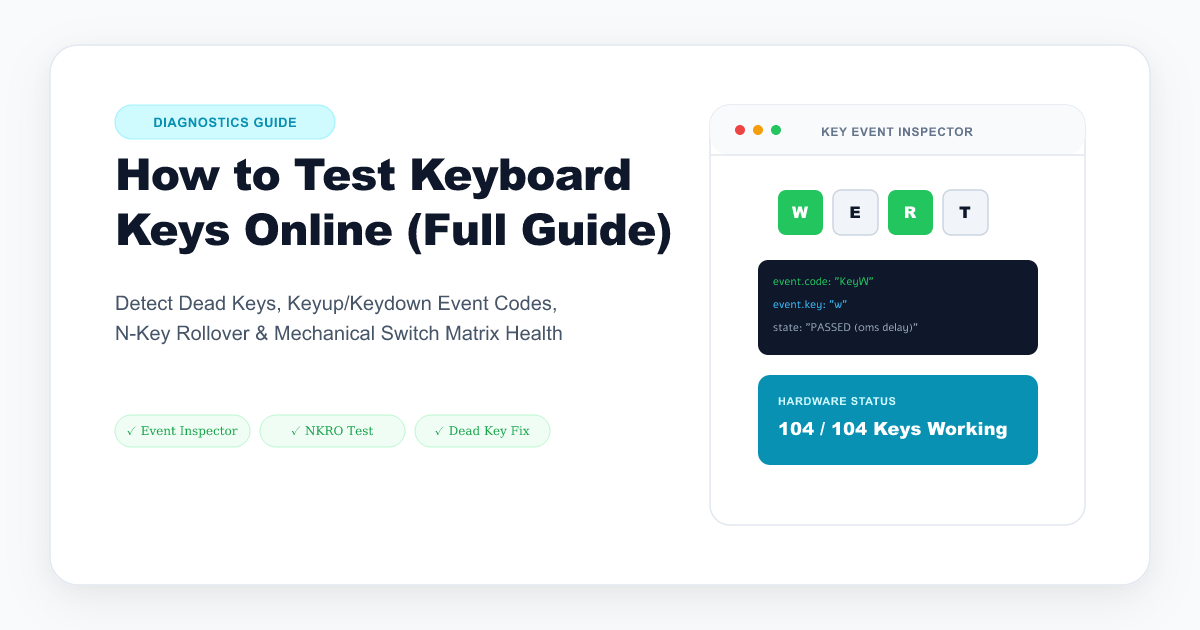
Whether you just unboxed a brand-new mechanical gaming keyboard, spilled coffee across your laptop keys, or suspect a specific letter is dropping inputs during high-speed typing, running a comprehensive hardware diagnostic test is the fastest way to isolate the problem.
Keyboard failures generally fall into four distinct categories: dead/unresponsive switches, physically stuck keys, contact bounce chattering (double-typing), and matrix ghosting bottlenecks.
In this guide, we break down how browser key events work, how to identify each switch defect, and how to verify your keyboard across all 7 major layouts using our Free Online Keyboard Tester.
The 4 Most Common Keyboard Hardware Defects
1. Unresponsive Key:   [ Physical Press ] ─── [ ZERO Signal Generated ]   (Broken contact / PCB trace)
2. Stuck Key:          [ Physical Press ] ─── [ Continuous Signal Fired ] (Mechanical stem friction)
3. Chattering Switch:  [ Single Press ]   ─── [ 2–3 Duplicate Events ]    (Contact bounce oxidation)
4. Ghosting / Dropped: [ 3+ Keys Pressed ]─── [ 3rd Key Unrecognized ]    (Matrix trace collision)
1. Dead or Unresponsive Keys
- Symptom: You press the key with normal or heavy pressure, but nothing appears on screen.
- Underlying Cause: Dislodged solder joints, broken hot-swap socket pins, oxidised switch contacts, or a damaged conductive trace on the PCB.
2. Stuck Keys (Continuous Firing)
- Symptom: A key acts as if it is permanently held down, filling text fields with
ssssssssssss. - Underlying Cause: Liquid residue causing the plastic stem to bind against the switch housing, or a short circuit across the switch terminals.
3. Key Chattering (Double-Typing)
- Symptom: Pressing a key once outputs double letters like
ttypeorhhello. - Underlying Cause: The metal contact leaves inside mechanical switches vibrate upon impact. When contacts age or collect dust, the bounce duration exceeds the microcontroller’s debounce timer.
4. Matrix Ghosting & Rollover Bottlenecks
- Symptom: Individual keys work perfectly, but pressing three keys simultaneously (e.g., W + Shift + Space while gaming) causes one of the keys to not register.
- Underlying Cause: Membrane and budget keyboards share electrical grid lanes (2-Key or 6-Key Rollover). Without anti-ghosting diodes on every switch, simultaneous inputs backfeed electrical current.
Step-by-Step: How to Test Your Keyboard Online
Follow this systematic procedure to evaluate 100% of your keyboard’s keys and modifiers:
Step 1: Open the Online Tester
Navigate to the Online Keyboard Tester. The tool renders an interactive visual canvas that mirrors your physical keyboard in real time.
Step 2: Select Your Exact Keyboard Layout
Use the layout selector above the virtual keyboard to choose your board size:
- Full Size (104/108-Key): Standard desktop layout with number pad.
- TKL (87-Key Tenkeyless): Compact layout without numpad.
- 75% / 65% / 60% Compact: Enthusiast and travel mechanical layouts.
- Laptop & Mac Layouts: Optimized for Apple Command (⌘), Option (⌥), and Function (fn) keys.
Step 3: Run the Systematic Keystroke Sweep
- Function Row: Press Esc through F12.
- Number & Symbol Row: Press ` through Backspace.
- Alpha Rows: Press Tab through </kbd>, then Caps Lock through Enter, then bottom row.
- Navigation Cluster & Numpad: Test arrow keys, Insert, Delete, Home, End, Page Up, and Page Down.
- Modifiers (Both Sides): Separately press Left and Right Shift, Ctrl, Alt, and Windows / Super.
Step 4: Test N-Key Rollover (Simultaneous Keypresses)
Press down 4 to 8 keys at the exact same moment with both hands. If all keys light up simultaneously, your keyboard features True N-Key Rollover (NKRO) with full anti-ghosting diodes.
How to Fix Common Keyboard Issues
| Failure Type | Quick Fix Protocol |
|---|---|
| Dust & Crumb Jam | Remove keycap with a wire puller; blow out switch with compressed air. |
| Chattering Switch | Disconnect power, dry-clean first, and use the exact manufacturer/model procedure. Do not inject liquid into an assembled switch or PCB by default. |
| Hot-Swap Switch Failure | Replace the switch only when the board, socket, pin layout, and replacement are compatible; use a qualified technician for soldered or nonstandard designs. |
| Sticky Liquid Spill | Unplug immediately, remove batteries where possible, avoid powering the device, and follow the manufacturer’s spill/service procedure. Do not wet an exposed PCB unless that procedure permits it. |
Launch the Free Keyboard Tester
Test every key on your keyboard in real time with zero software downloads, 100% privacy, and instant event inspector logging: