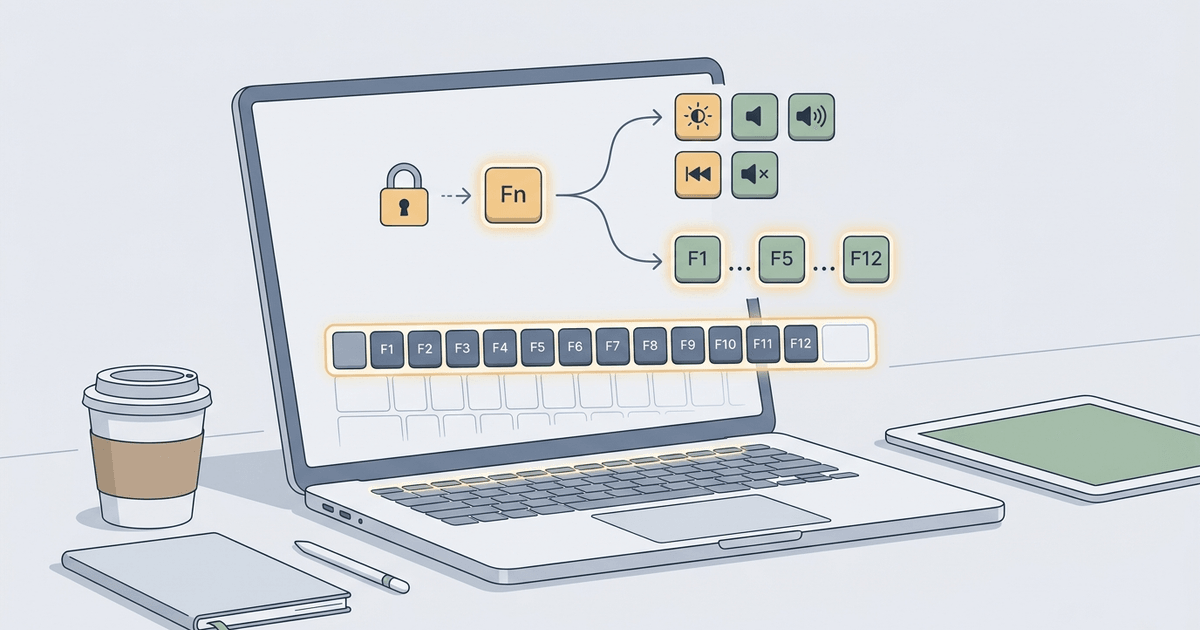
You press F5 to refresh a web page or debug code, but your laptop suddenly cranks the volume up or dims your screen brightness. You press F2 to rename a file, but nothing happens. Or worse, your entire top row of function keys (F1 through F12) appears completely unresponsive.
Function key malfunctions are among the most common technical support complaints across Windows laptops, MacBooks, and external desktop keyboards. In this troubleshooting guide, we walk you through the embedded hardware mechanics behind the Fn key, explain how laptop manufacturers configure Action Keys in BIOS/UEFI, detail operating system settings in Windows and macOS, and help you diagnose whether the issue is software or hardware.
1. Understanding the Dual Personality of Function Keys
Every physical function key (F1–F12) on modern laptops and compact keyboards serves two completely distinct roles:
- Standard F1–F12 Scancodes: Standardized keyboard scancodes recognized by operating systems and developer tools (e.g., F1 for Help, F5 for Refresh/Run, F11 for Fullscreen, F12 for Developer Tools).
- OEM Action / Media Keys: Proprietary hardware commands defined by your laptop manufacturer (e.g., Mute, Volume Up/Down, Screen Brightness, Keyboard Backlight, Airplane Mode, Projector Output).
The bridge between these two behaviors is the Embedded Controller (EC) on your laptop motherboard. The EC sits directly between your physical keyboard membrane and your CPU. Depending on whether your laptop has Fn Lock toggled on or off, the EC decides whether to send a standard KeyboardEvent scancode to the operating system or execute an internal hardware power state change.
How Function Key Signals Flow Through Hardware:
[ Physical F5 Keypress ]
           │
           ▼
[ Laptop Embedded Controller (EC) ]
      ┌────┴────────────────────────┐
      │ If Fn Lock = OFF            │ If Fn Lock = ON (Standard F-Keys)
      ▼                             ▼
[ OS System Action: Brightness + ]  [ Standard Scancode: event.code = "F5" ]
                                    [ Browser / IDE / OS Receives F5 ]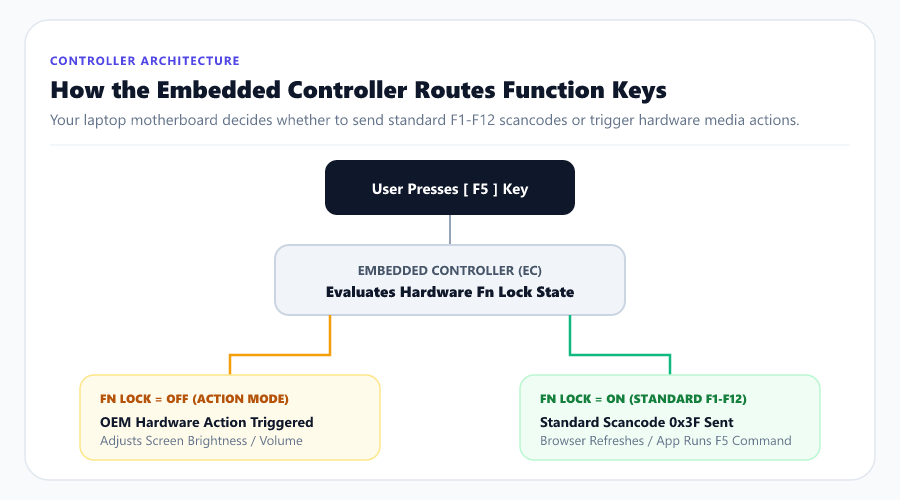
2. Step 1: Diagnose Which Keys Are Actually Firing
Before tweaking BIOS firmware or registry settings, you must identify what your keyboard is physically reporting to your computer:
- Open our free Online Keyboard Tester.
- Press F1, F2, F5, and F12 one by one.
- Observe the visual layout and the Key Event Inspector:
- Case A: The key lights up green and reports
code: "F5": Your physical key switch and driver are operating normally. Any issue you are experiencing in a specific app or game is an application-level keybinding conflict. - Case B: No key lights up, but your screen brightness or volume changes: Your keyboard is locked in Action Keys Mode. The EC is consuming the keypress before forwarding it to the OS.
- Case C: Absolutely nothing happens (no lights, no media changes): The physical switch, membrane trace, or keyboard ribbon cable is faulty.
- Case A: The key lights up green and reports
- If testing on an Apple laptop, switch to our specialized MacBook Keyboard Tester to test Globe/Fn, Option (⌥), and Command (⌘) modifier interactions.
3. The Physical Hardware Fn Lock: Shortcuts by Brand
Most modern laptops have an Fn Lock toggle key that instantly swaps the primary function of the top row without requiring a system reboot.
Look for a tiny padlock icon marked with “Fn” printed on your keyboard—usually located on the Esc, Caps Lock, or Left Shift key:
| Laptop Brand | Primary Fn Lock Hotkey | Visual Indicator |
|---|---|---|
| Dell | Fn + Esc | Small LED indicator on the Esc key |
| Lenovo ThinkPad / IdeaPad | Fn + Esc | LED light on the Esc or Fn key |
| HP (Hewlett-Packard) | Fn + Left Shift or Fn + Esc | On-screen OSD notification |
| Asus ZenBook / ROG | Fn + Esc | On-screen HUD banner or Armoury Crate setting |
| Acer Aspire / Predator | Fn + F12 or Fn + Esc | Acer Care Center toggle |
| Microsoft Surface | Fn (Single Press) | Integrated LED on the Fn keycap |
[!TIP] On Microsoft Surface Type Covers, the Fn key acts like a Caps Lock toggle: tapping it once turns on the LED (standard F1–F12 mode), and tapping it again turns off the LED (media keys mode).
4. BIOS / UEFI Settings: Changing Function Key Defaults Permanently
If you want your function keys to always behave as traditional F1–F12 keys by default (without needing to hold Fn or worry about accidental Fn Lock toggles), configure the setting in your computer’s motherboard BIOS/UEFI:
Step-by-Step BIOS Configuration:
- Shut down your laptop completely.
- Power on your computer and immediately begin tapping the BIOS entry key (typically F2 for Dell/Asus/Acer, F10 for HP, or Enter then F1 for Lenovo).
- Once in the BIOS/UEFI menu, navigate to the System Configuration, Main, or Advanced tab using your arrow keys.
- Locate the setting named Action Keys Mode, Function Key Behavior, or HotKey Mode.
- Change the setting:
- Enabled / Hotkey Mode: Top row triggers volume, brightness, etc. by default.
- Disabled / Function Key Mode: Top row triggers standard F1–F12 scancodes by default.
- Press F10 to Save and Exit. Your laptop will restart with your new default key behavior hardwired into firmware.
5. macOS Settings: Forcing F1–F12 on MacBooks and Magic Keyboards
On Apple macOS (Ventura, Sonoma, Sequoia, and newer), Apple laptops prioritize media and Mission Control functions by default. To restore standard F-key functionality:
For macOS Ventura, Sonoma, & Sequoia:
- Open the Apple Menu () in the top-left corner and click System Settings.
- Scroll down the left sidebar and click Keyboard.
- In the right pane, click the Keyboard Shortcuts… button.
- Click Function Keys in the left sidebar menu.
- Toggle the switch for “Use F1, F2, etc. keys as standard function keys” to the ON position.
macOS Configuration Path:
> System Settings > Keyboard > Keyboard Shortcuts > Function Keys >
[ Toggle: "Use F1, F2, etc. keys as standard function keys" -> ON ]When enabled, pressing F11 or F12 immediately sends standard function scancodes to your applications, while holding the Globe / fn key activates brightness and volume controls.
6. Windows Driver & Software Conflicts
If your function keys are not responding at all, third-party software or corrupted Windows services may be intercepting your keyboard scancodes:
1. Disable Windows Filter Keys
Filter Keys is a Windows accessibility feature designed to ignore brief or repeated keystrokes, but it frequently causes function keys to stop responding:
- Press Win + I to open Settings.
- Navigate to Accessibility > Keyboard.
- Turn Filter Keys completely OFF.
2. Check the Human Interface Device (HID) Service
The Windows HID Service is responsible for routing vendor-specific multimedia and function hotkeys to applications:
- Press Win + R, type
services.msc, and press Enter. - Scroll down and locate Human Interface Device Service.
- Ensure the Status is
Runningand the Startup type is set toAutomatic. - Right-click the service and select Restart.
3. Review Microsoft PowerToys & Gaming Software
If you use utilities like Microsoft PowerToys Keyboard Manager, Razer Synapse, Corsair iCUE, or AutoHotkey, verify that you have not accidentally remapped the top row to disabled macros.
7. Browser Shortcut Interceptions: F5, F1, and F7 Conflicts
When using web applications or browser-based tools, browsers intercept certain function keys for their own native interface commands:
- F1: Opens browser or operating system Help documentation.
- F3: Opens the in-page Find search bar.
- F5: Initiates a full page reload (often triggering the prompt “Reload site? Changes you made may not be saved”).
- F6: Shifts focus directly to the address bar (Omnibox).
- F7: Pops up the “Turn on caret browsing?” confirmation modal.
- F11: Toggles fullscreen browser mode.
- F12: Launches developer console tools.
Our Online Keyboard Tester listens for browser keydown and keyup events to display supported F-key activity. Browser, operating-system, application, and security behavior can suppress or redirect function-key events, so the result is a diagnostic aid rather than hardware certification.
8. Identifying Hardware Switch and Ribbon Cable Failures
If you have tried Fn Lock toggles, BIOS settings, and driver restarts, but specific function keys still fail to register, your keyboard may have suffered a physical hardware failure:
Signs of a Physical Hardware Failure:
- Liquid or Crumb Damage: If a single switch (e.g., F5) feels crunchy, stiff, or fails to pop back up quickly, physical gunk is obstructing the contacts.
- Whole-Row Dead Zones: If keys F1 through F4 or the entire top row are dead simultaneously, a printed circuit trace on the membrane or a cracked ribbon cable connector is typically responsible.
- Internal Membrane Oxidation: Over years of humidity and usage, the carbon/silver conductive traces printed on laptop keyboard membranes can oxidize and crack.
Next Steps:
If you suspect physical gunk or sticky switches, consult our comprehensive guide on How to Fix Sticky or Stuck Keyboard Keys. If a membrane trace is physically broken, replacing the internal keyboard module or using an external USB/Bluetooth keyboard is the most cost-effective permanent fix.