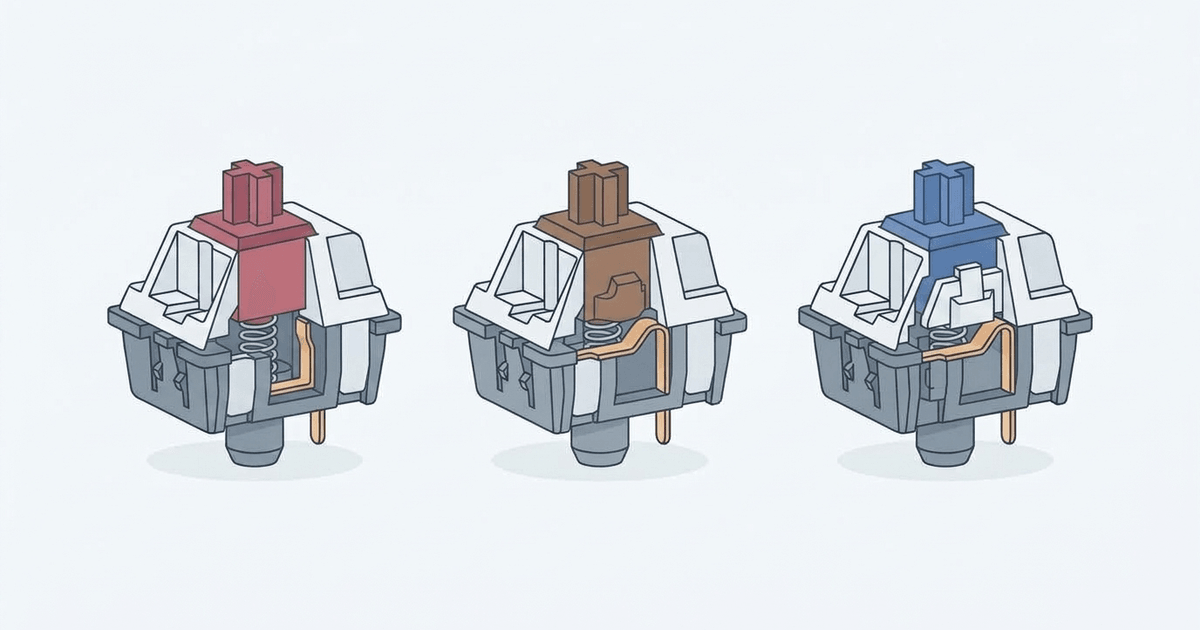
When shopping for a mechanical keyboard or upgrading a hot-swappable board, the array of switch colors can feel daunting. Originating from Cherry’s color coding in the 1980s, brands like Gateron, Kailh, and Outemu follow the same universal triad: Red, Blue, and Brown.
These colors are not cosmetic. They identify the internal mechanics, force curves, acoustic profile, and tactile feedback of every keystroke.
Understanding how these three switch archetypes operate internally is essential for choosing the best hardware for your typing cadence and gaming style.
1. The Anatomy of a Mechanical Switch
Beneath every mechanical keycap lies a self-contained switch housing five core components:
- Upper Housing: Guides the central stem and shields contacts from dust.
- The Stem: The moving vertical shaft. Stem leg geometry dictates whether a switch is linear, tactile, or clicky.
- Coil Spring: Controls actuation resistance, bottom-out weight, and rebound speed.
- Metal Contact Leaves: Gold-plated copper leaves that complete the circuit when pressed together.
- Base Housing: Holds terminal pins that connect directly to your keyboard PCB.
The difference between Red, Blue, and Brown switches lies in the stem leg contours and whether an independent click jacket is present.
2. Red Switches: The Linear Speed Standard
Red switches are the benchmark for linear design. When pressed, the stem travels straight down in a single uninterrupted motion with zero tactile resistance.
Linear Stem Profile:
│   │  (Smooth vertical leg)
│   │  (Continuous, uniform resistance)
Technical Specifications
- Actuation Force: 45g (cN)
- Tactile Peak: None (smooth curve)
- Pre-Travel (Actuation Point): 2.0 mm
- Total Travel Distance: 4.0 mm
- Sound Level: Low (35–45 dB)
Feel & Performance
With no tactile bump, resistance builds solely from spring compression. Red switches feel light, smooth, and consistent. Acoustically, they are quiet; sound occurs only when bottoming out or releasing.
Best Use Cases
- Competitive Gaming (FPS, MOBA): Titles like Valorant, CS2, and Apex Legends benefit from effortless double-tapping and rapid direction shifts.
- Streaming & Offices: Linears produce minimal background noise and will not disturb others.
The Trade-Off
The light 45g actuation and lack of tactile warning can cause accidental inputs if you rest fingers heavily on the keys.
3. Blue Switches: The Clicky Typist’s Classic
Blue switches represent the clicky archetype, engineered for typists who demand unmistakable physical and auditory confirmation the instant a key registers.
Clicky Stem Mechanism:
│ ┌─┐ │  (Two-piece stem with floating click jacket)
│ └─┘ │  (Jacket snaps downward to strike housing)
Technical Specifications
- Actuation Force: 50g (cN)
- Tactile Peak Force: 60g (cN)
- Pre-Travel (Actuation Point): 2.2 mm
- Total Travel Distance: 4.0 mm
- Sound Level: High (65–75+ dB)
Feel & Performance
Blue switches employ a two-piece stem with a free-floating click jacket. Pressing down pushes the jacket against the contact leaf to a 60g crest. Past this threshold, the jacket snaps downward, producing a crisp acoustic snap while closing the circuit.
Best Use Cases
- Typists, Writers, & Coders: The sharp feedback trains fingers not to bottom out, reducing fatigue during long sessions.
- Typing Accuracy: The distinct resistance threshold prevents accidental inputs from slight finger slips.
The Trade-Off
- Noise: Blue switches emit a sharp clatter that easily bleeds into microphones and open rooms.
- Hysteresis: The reset point sits above actuation, making rapid micro-tapping slightly less responsive than linears.
4. Brown Switches: The Tactile Middle Ground
Brown switches represent the tactile archetype. Designed as a versatile hybrid, they combine the quiet sound of linear switches with the physical feedback of clicky models.
Tactile Stem Profile:
│  /  │  (Engineered cam bump on stem legs)
│ /   │  (Physical resistance drop without audio snap)
Technical Specifications
- Actuation Force: 45g (cN)
- Tactile Peak Force: 55g (cN)
- Pre-Travel (Actuation Point): 2.0 mm
- Total Travel Distance: 4.0 mm
- Sound Level: Moderate (40–50 dB)
Feel & Performance
Brown switches feature a single-piece stem with a subtle curved cam on each leg. As the stem descends, this bump pushes the contact leaf outward, producing a gentle tactile rise at 1.2 mm before actuation at 2.0 mm.
Without a click jacket, Browns provide a clear physical cue directly to your fingertips without emitting an audible click.
Best Use Cases
- Hybrid Work & Gaming: Ideal for users balancing programming, typing, or data entry with evening gaming.
- Shared Workspaces: Delivers tactile confirmation without generating noise complaints from colleagues.
The Trade-Off
Enthusiasts sometimes describe standard Browns as having a relatively subtle bump compared to custom high-tactility switches.
5. Technical Comparison: Red vs. Blue vs. Brown
| Feature | Red (Linear) | Brown (Tactile) | Blue (Clicky) |
|---|---|---|---|
| Stem Design | Smooth Slider | Molded Stem Cam | Two-Piece Click Jacket |
| Actuation Force | 45g | 45g (55g bump) | 50g (60g peak) |
| Pre-Travel | 2.0 mm | 2.0 mm | 2.2 mm |
| Total Travel | 4.0 mm | 4.0 mm | 4.0 mm |
| Sound Level | Quiet (35–45 dB) | Moderate (40–50 dB) | Loud (65–75 dB) |
| Reset Hysteresis | Minimal (< 0.1 mm) | Minimal (~ 0.2 mm) | Noticeable (~ 0.4 mm) |
| Primary Strength | Rapid Double-Taps | All-Around Balance | Tactile Confirmation |
6. Testing Switch Actuation and Key Chatter
All mechanical switches rely on metal leaves that flex millions of times. Over time, dust or fatigue can cause issues:
- Key Chatter (Double-Typing): When worn contacts bounce upon closure, registering multiple characters per strike (learn more in our guide to fixing keyboard chattering).
- Missed Inputs: When particulate matter settles between leaves, preventing reliable circuit closure.
Before replacing switches or altering debounce delays, test your keyboard with our free Online Keyboard Tester. It visualizes switch states in real time, confirming whether issues stem from software or physical switch wear.
7. Which Switch Color Should You Choose?
- Pick Red Switches If: You focus on competitive gaming, desire light actuation for rapid inputs, and need a quiet sound profile for streaming.
- Pick Blue Switches If: You type heavily, enjoy typewriter-style acoustic confirmation, and work in a private space where noise is not an issue.
- Pick Brown Switches If: You want a versatile daily driver offering tactile feedback for typing without the loud clatter of clicky switches.
If your board has hot-swappable sockets, you can also mix switches—installing linear Reds on gaming movement keys (W, A, S, D) while keeping tactile Browns across your typing keys.