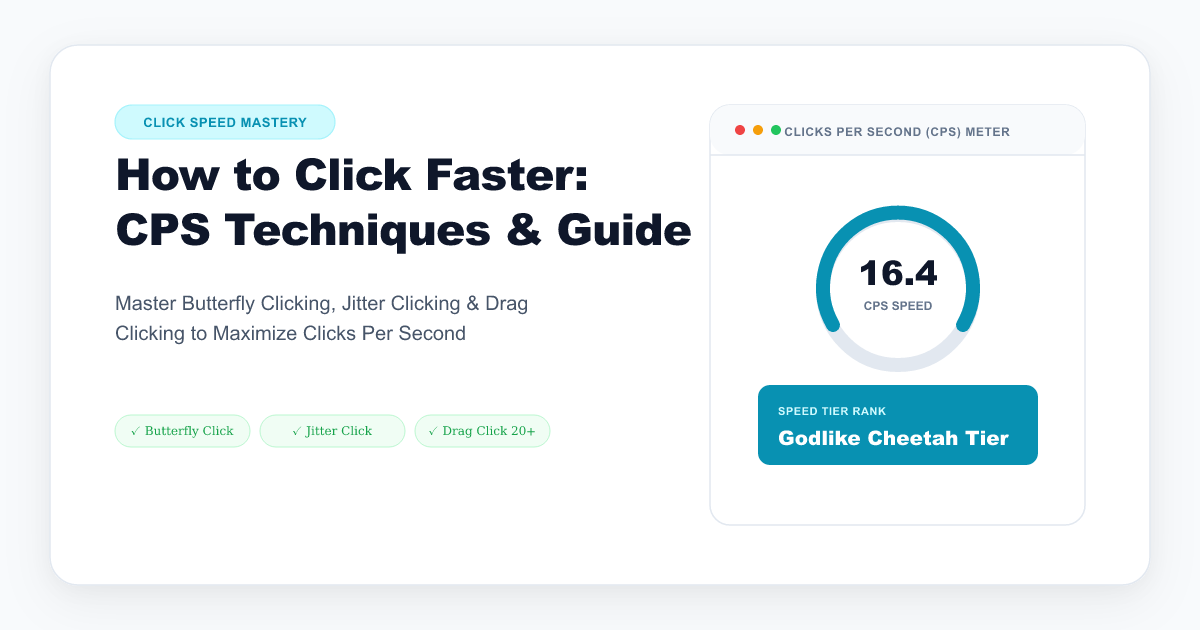
In fast-paced competitive gaming—especially Minecraft 1.8 PvP, Brawlhalla, Roblox, and shooter aim-duels—your Clicks Per Second (CPS) often dictates whether you win or lose a combat engagement. High CPS reduces knockback in Minecraft, speeds up semi-automatic trigger fire in FPS titles, and allows faster macro interactions.
In this guide, we break down the four primary clicking methods (Normal, Jitter, Butterfly, and Drag Clicking), explain how optical vs mechanical mouse switches affect your score, and help you benchmark your speed on our Free CPS Test Tool.
What Is a Good CPS Score?
Your CPS score measures the average number of mouse button clicks you register per second over a timed interval (typically 5 or 10 seconds):
$$\text{CPS} = \frac{\text{Total Mouse Clicks}}{\text{Test Duration in Seconds}}$$
| CPS Bracket | Rating Tier | Clicking Technique Used | Viable For |
|---|---|---|---|
| 4.0 – 6.5 CPS | Casual | Standard Regular Clicking | Casual gaming, web browsing, productivity |
| 7.0 – 9.5 CPS | Competitive | Fast Regular Clicking / Light Jitter | Standard FPS games, casual PvP |
| 10.0 – 14.5 CPS | Pro | Jitter Clicking / Fast Butterfly | Competitive Minecraft bridging, combative PvP |
| 15.0 – 20.0+ CPS | Godlike | Butterfly Double-Bouncing / Drag Clicking | Godbridge, breezily bridging, high-tier competitive |
These brackets are informal examples for comparing results from the same browser test duration and input setup. They are not standardized esports rankings, and game rules, server limits, debounce settings, and accessibility settings can change the result.
Test where your fingers currently stand on our Free Online CPS Test.
The 4 Clicking Techniques Explained
1. Normal Clicking:      [ Finger Taps Button ]               → 5–8 CPS
2. Jitter Clicking:      [ Arm Vibrates Intentionally ]       → 10–14 CPS
3. Butterfly Clicking:   [ Two Fingers Alternate Strikes ]    → 12–20 CPS
4. Drag Clicking:        [ Friction Skips Over Matte Surface] → 20–30+ CPS
1. Normal Clicking (5 – 8 CPS)
- How to do it: Rest your palm on your mouse and tap the left mouse button naturally using your index finger.
- Pros: Maximum aim precision, zero muscle strain, sustainable for hours.
- Cons: Hard physiological limit around 8 to 9 CPS.
2. Jitter Clicking (10 – 14 CPS)
- How to do it: Lock your wrist and vibrate the forearm muscles (specifically the flexor carpi radialis). This controlled tremor transfers through your index finger onto the switch.
- Pros: Works on virtually any standard gaming mouse without special double-clicking switches.
- Cons: Extremely difficult to aim and track moving targets; causes rapid arm fatigue and can lead to carpal strain if overused.
3. Butterfly Clicking (12 – 20+ CPS)
- How to do it: Place both your index and middle fingers on the left mouse button. Alternate tapping each finger down in a rapid flutter (Index-Middle-Index-Middle).
- Pros: Much easier to aim than jitter clicking, lower muscle strain, and capable of extreme CPS when paired with mice that support low debounce times (e.g., Glorious Model O, Roccat Kone Pro).
- Cons: Requires a wide mouse button surface.
4. Drag Clicking (20 – 35+ CPS)
- How to do it: Drag your dry fingertip firmly across the matte or grip-taped surface of the mouse button. The microscopic friction causes your finger to skip and bounce rapidly across the microswitch.
- Pros: Massive burst CPS (essential for Minecraft Godbridging and telly-bridging).
- Cons: Impossible to track or shoot precision weapons while drag clicking; requires specialized textured mouse coatings or electrical grip tape.
How Mouse Hardware and Debounce Time Affect CPS
If your mouse uses a traditional mechanical microswitch, its firmware may include a debounce filter to reduce unwanted double-clicks. The setting, timing, and behavior vary by model and firmware.
- Adjustable Debounce Firmware: Some gaming mice expose a debounce setting, but supported ranges and side effects are model-specific. A very low setting can allow unintended duplicate activations; it does not make a single physical click intrinsically faster.
- Optical Microswitches: These may avoid metal-leaf contact bounce, but they can still fail and their behavior with drag-clicking depends on the complete mouse design and firmware.
3 Tips to Benchmark and Improve Your CPS
- Practice on Short Intervals First: Begin with the 1-Second and 5-Second modes on our CPS Test to build peak burst velocity before attempting the 60-second endurance run.
- Use Mouse Grip Tape: Applying textured grip tape to your LMB increases surface traction, making butterfly and drag clicking significantly easier.
- Warm Up Hand Tendons: Stretch your wrists and fingers before long clicking sessions to prevent repetitive strain injuries (RSI).
Ready to Test Your Click Speed?
Benchmark your left click, right click, or spacebar clicking speed right now: